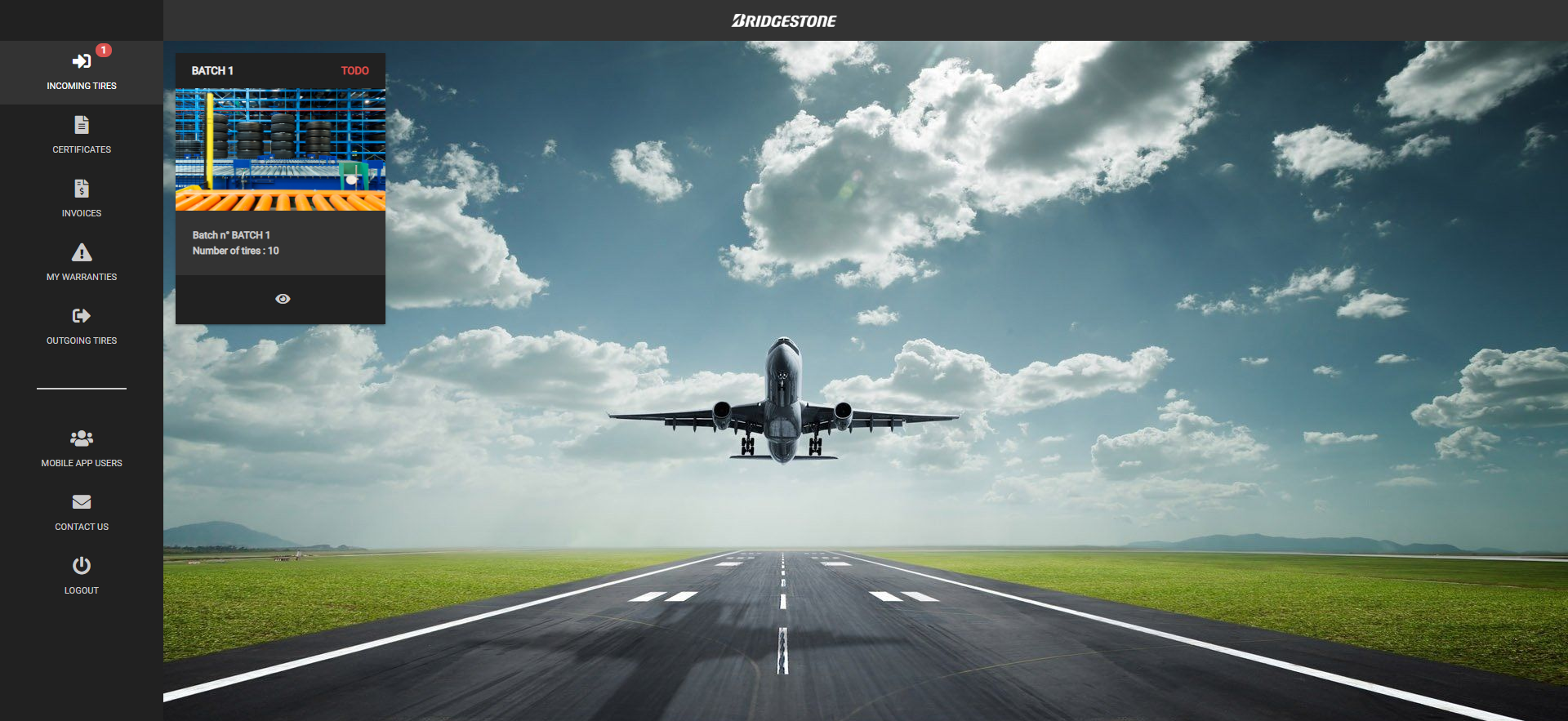
[viziontitle style_type= »7″ position= »center » color_option= »no » viziontitle_content= »Desktop solution » vizionsubtitle_content= »Our desktop module enables customers to centrally manage all information relating to tires that are currently at a customer’s facility or on aircraft. »]
[vizionFancybox style_type= »20″ viziontitle_content= »Incoming tires » vizionsubtitle_content= »View all tire batches to be scanned during the offloading process or any serial number that has already been scanned by warehouse operators. Click on a batch to display all tire serial numbers contained in that specific batch. Certificates and invoices can also be accessed through this page. » position= »center » extra_class= »red-hover » image= »1451″][vizionFancybox style_type= »20″ viziontitle_content= »My warranties » vizionsubtitle_content= »Any serial number reported to Bridgestone for warranty claims or damage reports appear under this section. Click on a report to view the operators’ reports (text, pictures) created with the application. » position= »center » extra_class= »red-hover » image= »1455″]
[vizionFancybox style_type= »20″ viziontitle_content= »Certificates » vizionsubtitle_content= »The certificate search feature allows customers to access any certificate that are currently at their facility or on aircraft. A search can be carried out by label scan, serial number, size or part number and the certificate selected can then be viewed, saved or shared with other departments. » position= »center » extra_class= »red-hover » image= »1450″][vizionFancybox style_type= »20″ viziontitle_content= »Outgoing tires » vizionsubtitle_content= »Select specific units from a list of serial numbers or select all units to create new batches to be sent back to Bridgestone. The task will then appear warehouse operator’s smartphone in the “TO DO” section. The tires selected for shipping then only need to be scanned with a smartphone in order to confirm loading to the customer and to Bridgestone. » position= »center » extra_class= »red-hover » image= »1453″]
[vizionFancybox style_type= »20″ viziontitle_content= »Invoices » vizionsubtitle_content= »Consult and/or internally route all your Bridgestone invoices to the appropriate staff in order to save administration time. » position= »center » extra_class= »red-hover » image= »1452″]
[vizionFancybox style_type= »20″ viziontitle_content= »Mobile app users » vizionsubtitle_content= »Manage the access profiles to the application. Add, modify or delete a user. » position= »center » extra_class= »red-hover » image= »1454″]